Navigation & Interface Overview
Main Dashboard and Navigation Overview
Upon successful login, users are directed to the Main Dashboard, which serves as the central workspace for accessing and managing projects across various modules.
A Project acts as a central tag, bringing together pipelines and models that support a single use case.
Project Landing Page
The landing page displays a list of all active projects available to the user based on their assigned roles and permissions.
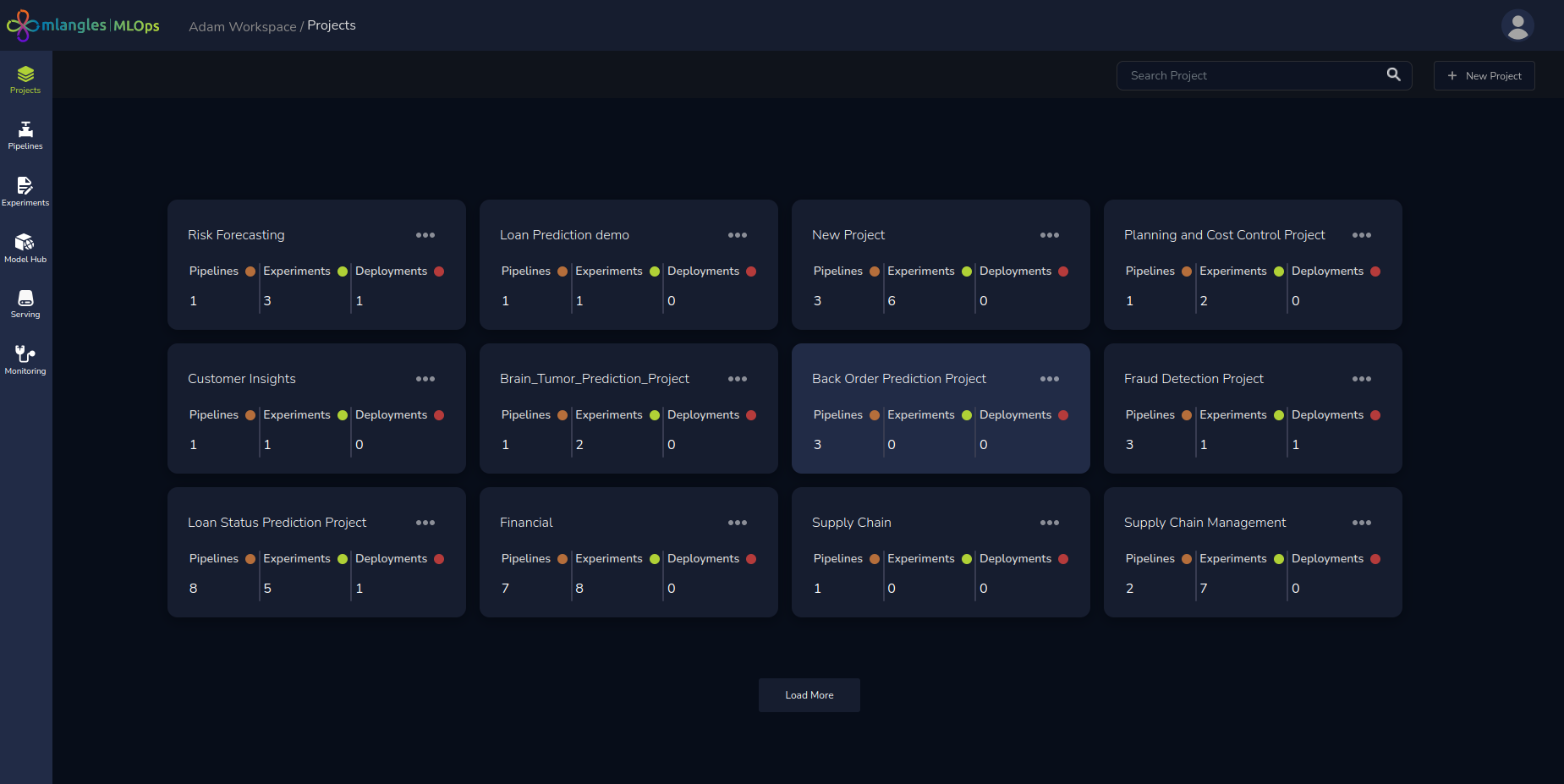
Figure 2 – Main Landing Page: Project List View
Each project tile typically includes metadata such as:
- Project name and description
- Total pipelines, models and model deployments
Upon clicking on any project card, the user is navigated to the project home page and can view both pipelines and experiments associated with the project.
Navigation: Sidebar Modules
On the left-hand sidebar, icons represent the core functional modules of the mlangles platform. Clicking an icon navigates the user directly to the corresponding module interface.
- Projects – View and manage ML projects.
- Experiments – Run and track model training experiments.
- Pipelines – Create and manage data processing pipelines.
- ModelHub – Register, version, and deploy models.
- Serving – Access both online and batch deployment endpoints.
- Monitoring – Monitor model performance, drift, and usage metrics.
Top Toolbar: Search and User Access Controls
The top-right section of the dashboard contains tools for navigating projects and managing user access:
- Search Bar: A search bar is positioned on the top right of the screen. Users can filter and locate projects based on project name. This is particularly useful searching for projects when working with a large number of projects across different teams and business units.
- New Project : Users can create a new project by clicking on the button
- Access Control Menu:
Located adjacent to the search bar, the access control menu consists of two essential buttons:
- Role & Access Management
- Clicking this opens the interface for managing user roles and permissions.
- Administrators can assign users to specific business units, configure access roles (based on credentials and cloud resources), and define functional roles with module-specific permissions (e.g., read/write access for Pipelines, Serving, Monitoring, etc.).
- Logout
- This button allows the user to securely log out of the platform and return to the login screen.
- Role & Access Management